Free Hologram Generator Script (Download)

Download Crate’s Free Hologram Script here

This Script has been updated for AE CC2021 on 12-17-2021

Create a Free or a Pro account, then simply click the link above to download! This script was built with an older version of After Effects, but is completely compatible. If you have errors appearing, please go to File > Project Settings > Expressions and change your expression engine from JavaScript to Legacy ExtendScript

Creating holograms in After Effects is about to get a lot more fun with the release of our latest script.

These effects are one of the most requested on ProductionCrate, our library of thousands of digital assets to help build your creative endeavours. We know that often you will need to control what’s projected in the hologram, which is why we released this tool to help you do exactly that.

Not only can you download it for free, but using it to create your After Effects hologram is a one-click process!
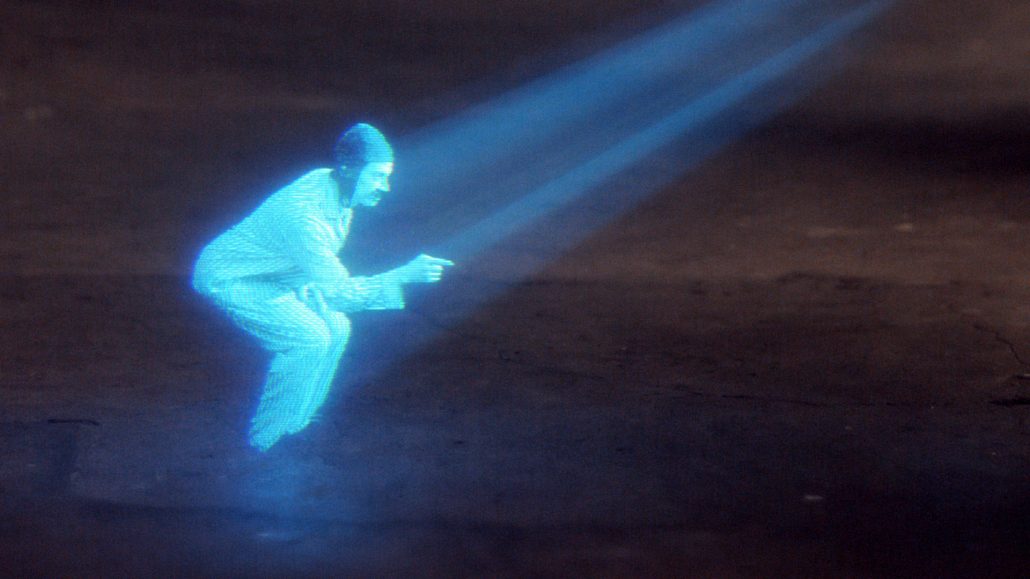
Download Free Hologram Script for After Effects

Every feature that you could possibly need was built into the script. This includes:


  • ColorDownload Free Hologram Script for After Effects
  • Glow
  • Projection Rays
  • Chromatic Aberration
  • Scan Lines
  • Displacement
  • Flicker
  • Signal Interference
  • Framerate
  • Pixelate
  • Blur
  • Sharpen

All properties are fully customisable, meaning no matter what style you were aiming for, you’ll get there.

If you wanted to save your customised hologram, you can also click Animation -> Save Animation Preset to be able to apply it to any other shots you may have.

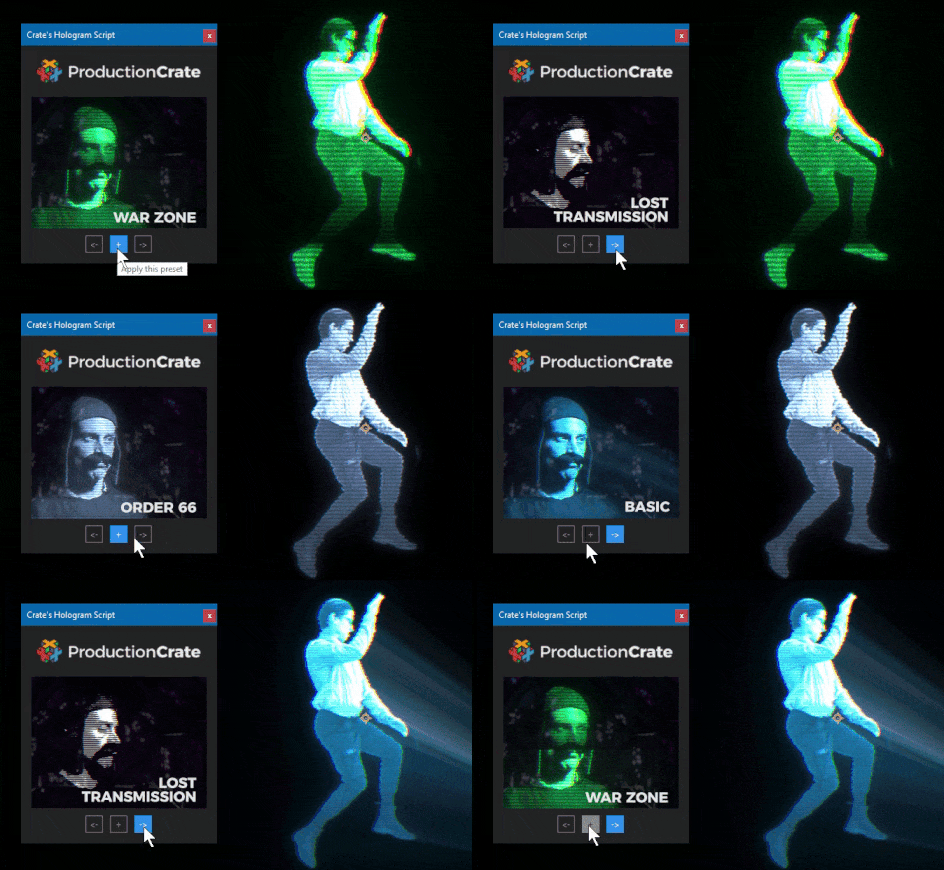
And if you wanted to save time, you might be interested in checking out the presets that we have built into the script. You can navigate through these by clicking the arrows on the pop-up window. These have been built to mimic some of the most recognisable movie holograms, referencing Star Wars, Iron Mans HUD, Aquaman and more.
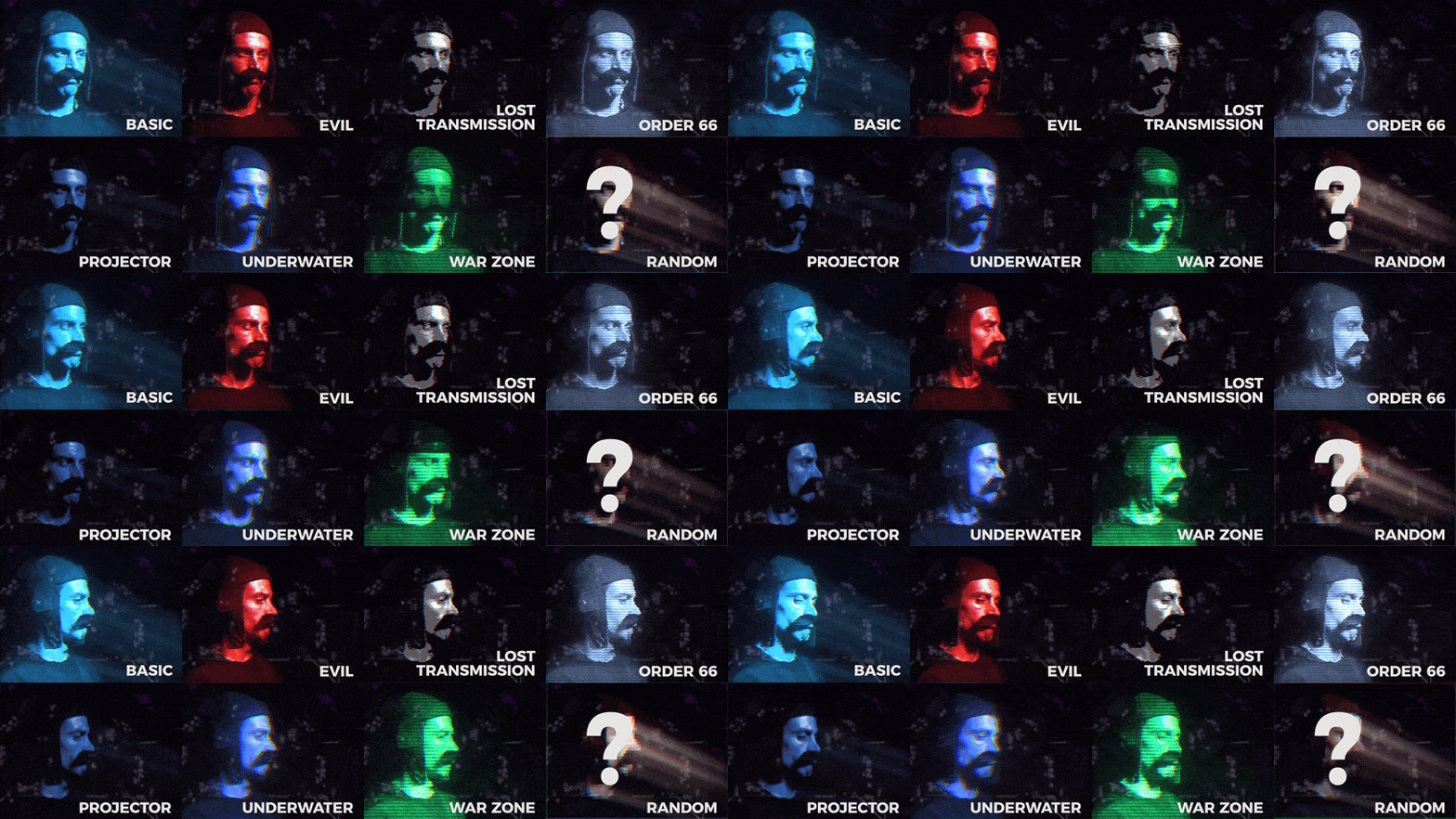
Download Free Hologram Script for After Effects

To download and install the script, open up After Effects and navigate through File -> Scripts -> Run Script File. Find a folder you wish to keep the script, then extract both the images folder and “Crates Camera Script.jsx” to the new location. Double click the .jsx file and you’ll be ready to create your holograms in an instant!

If you’re wanting to save even more time, you can download these HD hologram VFX assets for your video.

Crate’s Free Midpoint Null Generator Script

Crate’s Midpoint Null Generator Script is Free and can be downloaded Here.

Start with two null objects, these can be tracked in manually or using one of the various tracking features in After Effects.

Make sure your AE Script is installed in the After Effects > Scripts Folder

Within After Effects go to File > Scripts > Crate’s Null Generator Script

This script works in both 2D and 3D, so select either 2D Midpoint or 3D Midpoint depending on your needs.

You have the option to add some wiggle to the midpoint null as well. By default there will be wiggle controls on every null but you can select ‘control null’ if you want one set of controls for every null all in one place.

If you don’t need wiggle, keep the Wiggle Amplitude and Wiggle Amount at zero.

By default you just get one Midpoint null, which will be right in the center of your two animated nulls. If you want more than one null, they’ll be automatically distributed evenly between the two animated nulls.

Each midpoint null has a bias slider you can use to move it closer to Point 1 or Point 2.

Check out how we can used this script below. We tracked the handle of the sword and the tip of the sword, and applied that data to two nulls.

There are many ways you can utilize this powerful script in your projects.

Crate’s Free Text Animator script for After Effects! (Download)

Download the Crate’s Text Animator script for After Effects here

All ProductionCrate members can now download the exciting Text Animation script for free!

This exciting addition to the range of tools gives you the power to create fun animations for your text – with a single click.

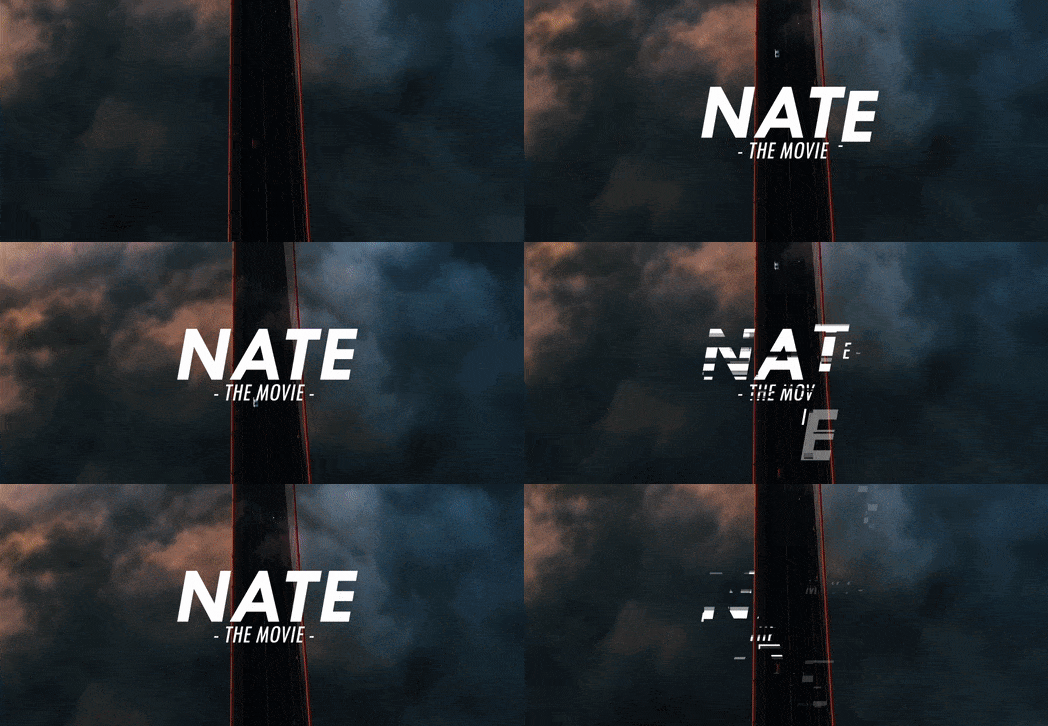
With 25 hand-made presets to choose from, you’ll never run out of a fresh way to liven up your videos, commercials or presentations! The presets include glitches, fly-ins, slides, spins and more.

Without the script, to create a text animation graphic in After Effects, you may spend hours manually adjusting countless keyframes and meticulously modifying their speed, opacity, motion blur and many other parameters. This script puts an end to the suffering, doing all of the work for you within seconds!

To give you even more control, our script creates a Null object that contains adjustable parameters, so you can tweak your design to perfection even after generation.

Let’s take a look at the After Effects script:

Free Crate's Text Animator script for After Effects! (Download)


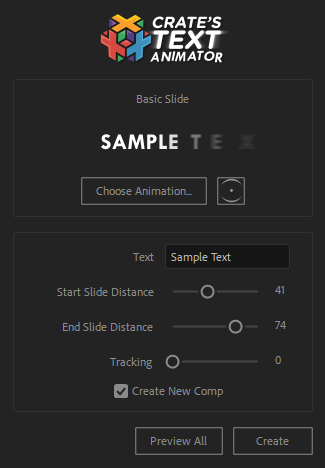
Choose Animation – This opens up the range of presets that you can choose from.

Eye Icon – Generate a preview that helps you see what the animation looks like.

Text – Enter what you want to be displayed!

Preset Parameters – Once you’ve selected a template, a number of sliders will appear that lets you customize each preset to meet your expectations. These are also accessible through the Null object that is generated with the preset.

Create New Comp – Enabling this creates the new text in a new composition. Disabling will generate the text in your selected composition.

Preview All – A handy tool that creates a grid previewing all the available presets

Create – Once you’re happy with your settings, hit this and let the script make your text come to life!


The script has been built to balance simplicity with function, so whether you’re a Vlogger wanting to spice up your editing skills, or are building a title card for a blockbuster movie, this script is for you!

Crate's Text Animator script for After Effects! (Download)

To install the script, extract the files from the download, and drop  “Crate’s Text Animator.jsx” folder into your After Effects > Scripts folder. You then can run the script by heading through File -> Scripts -> Crate’s Callout Script.jsx.

We’re excited to see what you create with this script! If you’re interested in our other After Effects scripts, extensions and plugins, check out this page here. 


Create Callouts for Free in After Effects (Script Download)

Creating callouts for your video can often be a complicated and time-consuming process, though all that is about to change…

We’ve created a free powerful script for Adobe After Effects that can do all the work for you in seconds: Crate’s Callouts!

Download the Free Callout Script here.


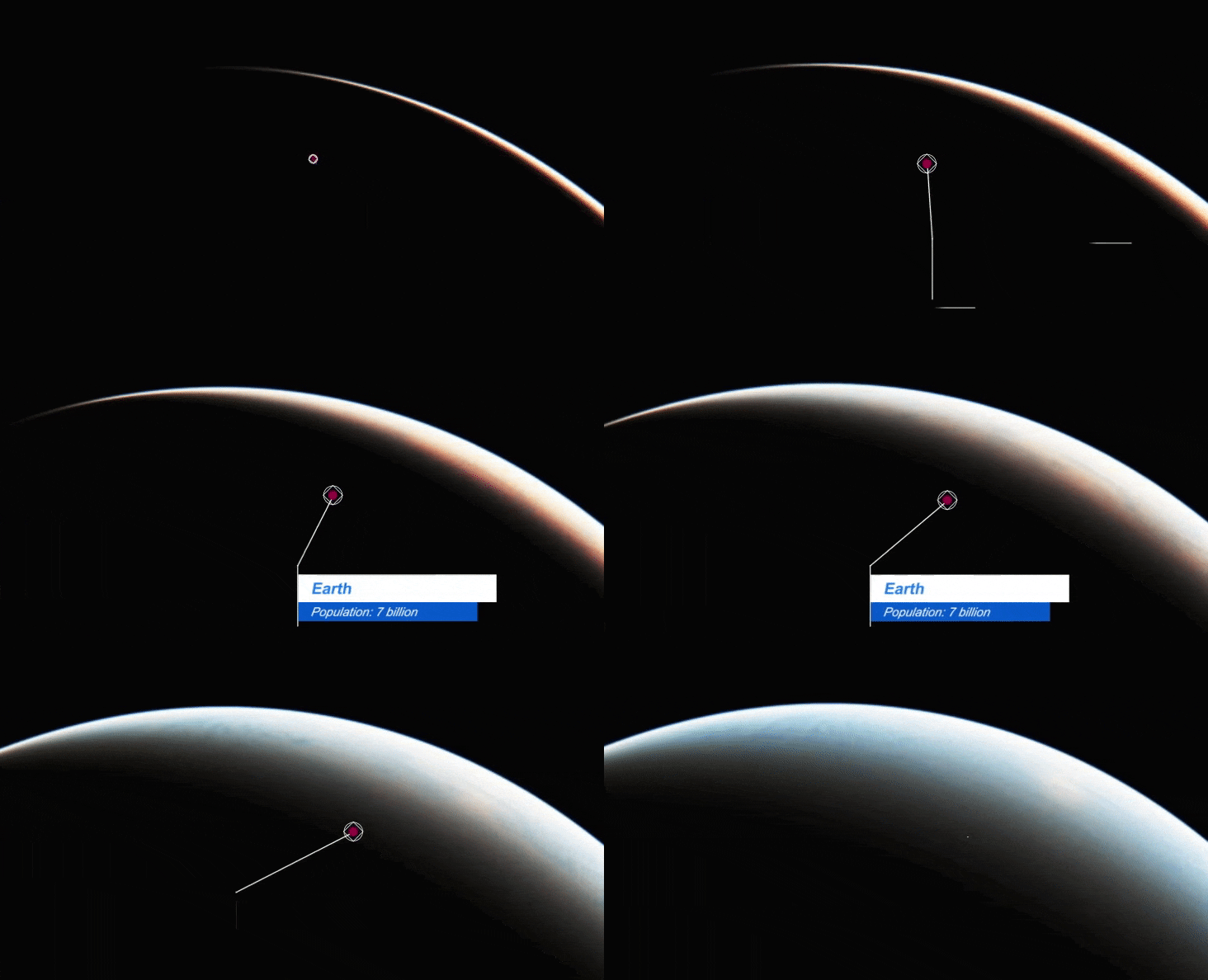
Callouts are the small infographic labels that overlay a video, highlighting an important feature to inform the viewer of a name, statistic or the anatomy of a seal:

Create Callouts for Free in After Effects (Script Download)

The script is packed with a huge bundle of presets, all fully customizable and ready for you to composite onto your video. This means that if you work for an organization or run a YouTube channel, you will be able to match the branding by adjusting the colours of the templates with one click!
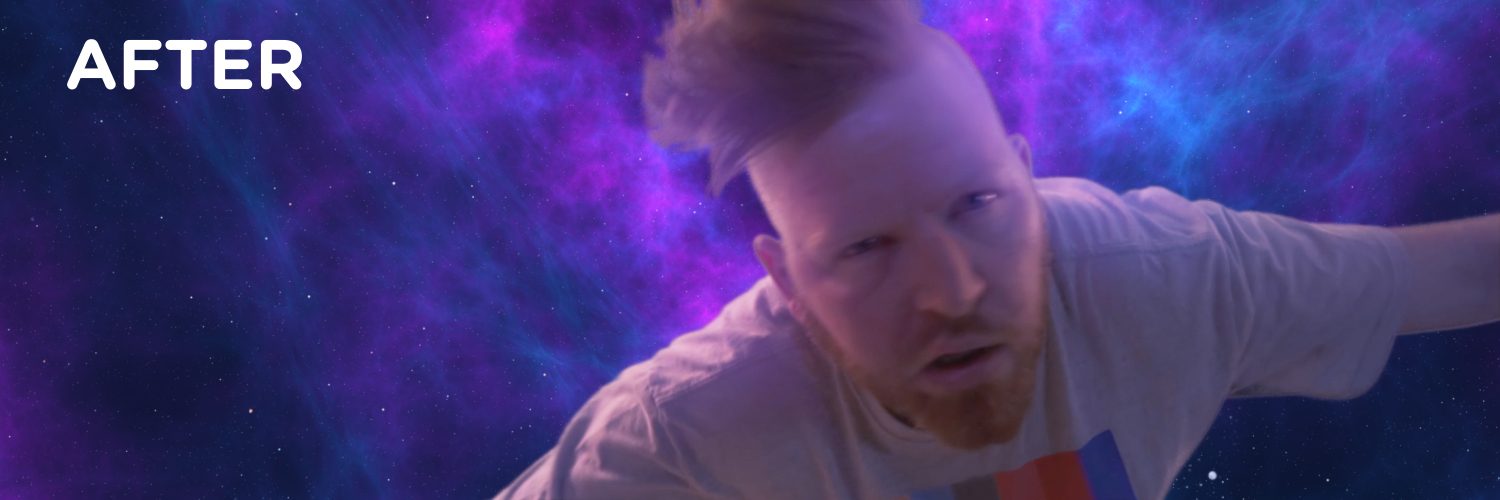
To get started, you’ll need to first use a Null object to mark the position of what you want to be featured by the callout. The best part about this script is that it can be completely animated, so if you need the callout to follow a moving subject then this is the script for you.

Create Callouts for Free in After Effects (Script Download)

For the next step, we’ll need to install our script. Extract the files from the download, and drop the “productioncrate-callout-script.jsx” file into your After Effects > Scripts folder You then can run the script by heading through File -> Scripts -> Crate’s Callout Script.jsx.

Now let’s take a look at what features we have at our disposal:

Create Callouts for Free in After Effects (Script Download)


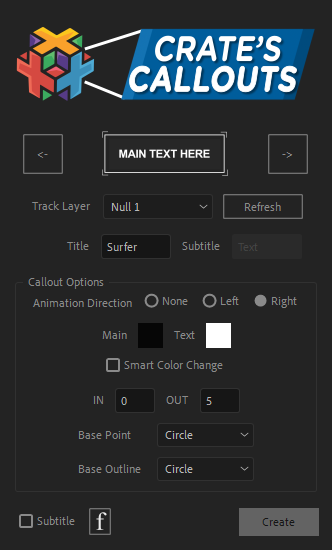
Arrows: Navigate through the presets to find the one you want.


Track Layer: Select the Null object you want the callout pointer to follow.

Title + Subtitle: Here’s where you input the text you want to be displayed.

Animation direction: Which way would you like the callout to come in from?

Color tools: Adjust the look of the preset to match your brand.

Smart Color Change: This nifty feature will automatically adjust any other colours that can be controlled to match your theme.

In/Out: What period (in seconds) do you want the callout to be on screen?

Base Point/Outline: Control the shape of the feature mark.


F: Click this to open up the text composition after creation, so you can adjust the font manually.


Once you’re happy with all the settings, hit “Create”, and you’ll save hours of time while the script creates your dream callout card within seconds!

Each preset has been carefully designed animated to give it the most professional appearance possible, helping you increase your production value at no extra cost!

If you want to control and customise the callout card after it has been generated, that is no problem! There will be a control null generated in your main composition window, clicking on this will reveal all of the various colour settings that you can adjust instantly in the effects window.

We’re excited to see how you make use of these free After Effects callout presets. If you’re interested in how else you can boost your workflow, take a look at our Lower Thirds script.

Create Callouts for Free in After Effects (Script Download)


Download the Powerful Lower Thirds Script for After Effects

Download Crate’s Lower Thirds Script here (Pro) Updated 8-17-2022

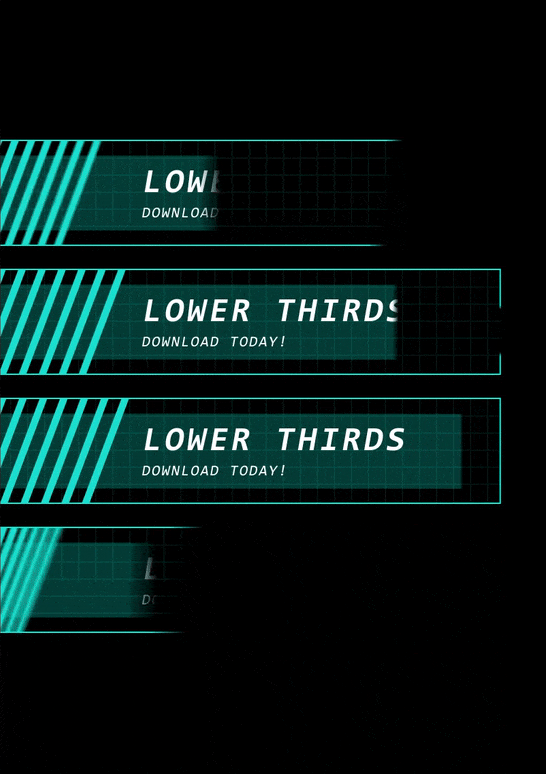
Ever wondered how to create lower thirds in After Effects? Pro members can now download the latest After Effects script to generate your own customized lower thirds! We have just updated this free script with 20 New Lower Thirds for Social Media and Youtube Call to Actions!

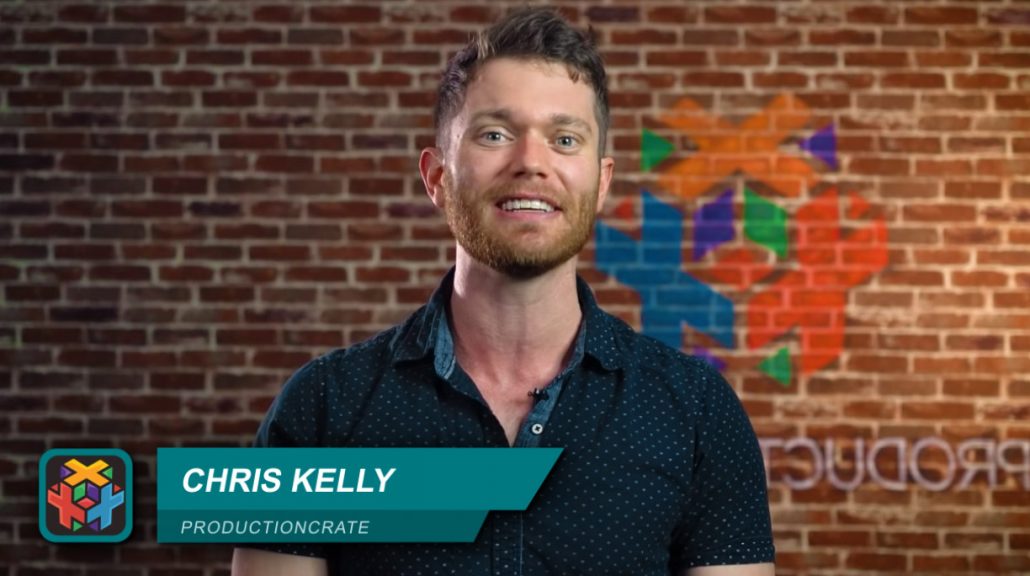
For those new to the term, lower-thirds are the banners that overlay the base of a video, containing text that helps provide information. This can be the name of the person on-screen, context to some archive footage, or even as the countdown card for a Top 10 video!

Download Crate's Lower Thirds After Effects Script

Download our script today, and create your own lower-thirds with our one-click solution!

With an astonishing 75 templates to choose from and a huge range of customizations to make, you will have everything you need to create the lower-thirds that matches your branding perfectly. So whether you’re editing for a sports program, an exciting tech-startup or your own YouTube channel, our script is here to give you a professional look you deserve within minutes!

Download Crate's Lower Thirds After Effects Script

Our main categories each feature their own range of unique designs:

  • Artistic lower thirds
  • Corporate lower thirds
  • Geometric/Modern lower thirds
  • Floral lower thirds
  • Minimalistic lower thirds
  • Sporty lower thirds
  • Tech lower thirds
  • Social Media (NEW)
  • Youtube (NEW)

Let’s take a look at the interface, and see what tools will be at your disposal.

Download Crate's Lower Thirds After Effects Script

Category: Tell us what your video is focusing on! We’ll then display a variety of different themes for you to choose from which have each been individually designed to fit your needs.

Logo: If we’ve featured an option for you to add your branding in a specific template, here is where you select the specific layer for us to use in the lower third.

Title: Type in what you want the viewer to read!

Subtitle: If the template supports a subtitle, this is the smaller text that will usually appear beneath the title, such as a date, or a job title.

Colour pickers: Use the colour picker to help show off your brand!

Smart Colour Change: This special tool will change the colour of similar elements included in the design, so it automatically matches your picked colour style.

In/Out: Decide exactly when you want the lower-third to appear and disappear!

Create New Comp: When deselected, the lower third will be directly imported into the current open composition. When turned on, it is built in a separate composition.

Create: Once you’re happy with all of your settings, hit this to let the magic happen!

Installing the script is a swift process. Just drop both the “Crate’s Lower Thirds.jsx” and “images” folder into your After Effects > Scripts folder Open up After Effects, and run the script by heading through File -> Scripts -> Crate’s Lower Thirds

youtube graphics download for after effects

We are excited to see how you make use of this lower-thirds generator!

If you’re interested in our other scripts, check out our easy looping animation script.

Free Loop Script for After Effects!

Looping in After Effects has never been easier. There are tons of looping expressions and different ways you can get your footage or keyframes to loop. Remembering all the techniques can be tricky, so we decided to make the Crate’s Looper Script


Download the 100% Free Crate’s Looper Script Here


You must be logged in either as a Pro or a Free user to download the script. Drag and Drop  into your After Effects > Scripts Folder


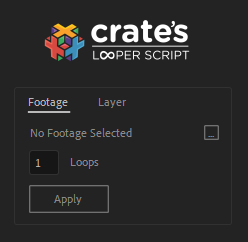
If you want to loop footage or media make sure to select the footage in your Project Window. Set the amount of times you want it to loop and hit Apply. You can also select your footage by pushing the ‘…’ button on Crate’s Looper Script.


The Time Remap option is auto-checked. This is the most popular looping option for Footage or Compositions. It creates 2 key-frames, one at the beginning and one at the end of your layer. If you want to loop another parameter, such as rotation or position, un-check this option. (Box 1 on the Right)


You can choose to loop-in, loop-out, or both! Looping-in will loop from the last key-frame to the first key-frame. Loop out, the more often used, will loop from the first key-frame to the last. Loop-In/Out will do both of these options.


Let’s take a look at some of our different looping options now. See where it says ‘none’ on our right? Select that drop-down. You will see these amazing looping options! Check out what each one of them does below.


Ping Pong looping in AE

Ping – Pong allows your animation to go forward until the last key-frame and then repeat the animation backwards. It’s like the popular Boomerang effect you see everywhere!


Download this free script now

The Continue Loop is really interesting, instead of stopping on the last key-frame the animation takes into account the motion parameters and makes them continue on indefinitely.


Cycle is a useful loop. This will start your animation over to the first key-frame after the last key-frame.


Offset is definitely the most interested. We used 3 key-frames to really show this one off. The animation cycles through all 3 key-frames (start, finish, halfway back to start) but continues it’s directional movement. The animation repeats but is ‘offset’ from the difference in the key-framed parameters. This one is especially fun to make complex animations with!

Want to check out more of our scripts? See them all here

Animated Hand Gestures – Extension for After Effects

THIS PLUGIN IS NO LONGER SUPPORTED

Pro Users can download this awesome Hand Gestures Extension here for Mac and Windows

(Mac is the .dmg installer, Windows is the .exe)

This extension comes with 50 Animated Hand Gestures, compatible in AE CC


If this is the first extension you have downloaded from ProductionCrate, a warning message may pop up. Your OS just wants to confirm it is standard and safe (it is!)


The installer is built in, so simply double click and follow the installation guide.


The Crate’s Hand Gestures extension is built in with your needs in mind. Toggle through over 50 different animated hand gestures to find the one that is right for you.


We have options for phone screens, thumb swipes, finger taps and so much more!


Customize the skin color and sleeve color of your animated hand, flip the X and/or Y, and choose whether or not to have the motion shapes enabled.


Lastly, simply select the dimensions you want from the 3 most popular and hit Create! Just like that you have saved yourself hours of tedious labor.


If you want to use one of the many Phone Screen options simply create new compositions (File > New Composition) and make sure the settings for the dimensions are 615×1040 to fit perfectly into our animated phone screens.


Depending on how many swipes in your selected animation you will be able to choose 2-3 screens.


Follow the same steps as before and generate! You can toggle the Shy switch for more control, if you want to make any adjustments to the animation. Jump into your phone screen comps and adjust the timing if needed.


This is perfect for all your explainer videos, promos and commercial content. Enjoy!


Want to see our other Scripts and Extensions? Check these out

How to add realistic camera shake in After Effects – Crate’s Camera Shake

Download Crate’s Camera Shake script here (Available for Pro Members)

There’s something unnatural about the well-known wiggle expression. It’s fair to say that this sort of shake is too perfect.

If you watch over a hand-held video recording, you’ll be quick to notice the immense differences between handheld footage and the go-to wiggle expression.

Add Realistic Camera Shake to your Video

While the wiggle expression does create a shake, it’s mathematical, where it smoothly interpolates randomly generated keyframes between intervals of time. In the real world, camera shake has a huge range of factors that can influence it: footsteps, wind, and weight of the camera are just a few!

This is why we have created our After Effects script, Crate’s Camera Shake!

The toolkit can create a fully-realistic camera shake with only the click of a button.

It’s fast, fully customisable, and is packed with features. So how does it work?

We’ve tracked and analyzed several different pieces of footage, all recorded in different scenarios. Earthquakes, running, handheld and more are all part of the bundle to choose from. Once you browse the built-in library of shake presets, you can then apply it directly to your footage. It’s that simple!

If you’re seeking more control, we’ve also included a variety of customisable options to perfect your shake.

Add Realistic Camera Shake to your Video


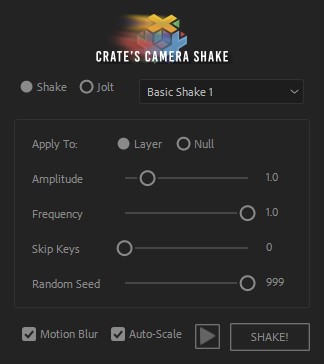
Amplitude – The strength of the shake.

Frequency – The speed of the shake.

Skip Keys – Reduce the density of keyframes (a value of 2 will place a keyframe every 3 frames instead of 1).

Random Seed – Add more unique randomness to your shake.

Motion Blur – Have the script automatically set up motion blur to the shake.

Auto Scale – The script will calculate the perfect size for your footage so that the shake does not have it drift out of frame.


We’ve also implemented a Jolt for you to choreograph your perfect set of shakes. The Jolt will be applied wherever your timeline scrubber is on your timeline. You can generate a null with the shake or apply directly to your layer.

These can be applied directly into the shake animation wherever you need, and give an impact to your footage. Jolts are perfect for explosions, impactful footsteps, or something rushing past the camera.

Add Realistic Camera Shake to your Video

Crate’s Camera Shake After Effects Script is exclusive for our Pro Users. The Pro Content continues to grow rapidly, sign up today!

We’ll be using this script in nearly every video we create and know you’ll find it as useful as we do.

Want to check out our other scripts? See them here

Easy Light-Wrap Script for After Effects!

Compositing can be exhausting. We composite on a daily basis, and always want to improve our workflow. Light-wrapping in After Effects isn’t too difficult, but it can be a long process. Speed things up for yourself and Download the Free Light Wrap Script

Oh, and it’s Free for everybody!

Light-wrapping is an essential technique to make your composites look more realistic. If a composited element sits in-front of a bright background then light should be ‘wrapping’ around it. This script lets you do just that with with a few clicks, and customize to your heart’s desire.

Install the script in your After Effects > Scripts folder. Launch it by opening AE and going to File > Scripts and selecting Light Wrap Script

For the Foreground Layer select the subject you are compositing onto your scene. For your background layer select the Background that is generating the light. Blur, Brightness and Tint can all be adjusted now or later. Tint will desaturate the colors of your light wrap. Blur will increase the blur and wrap amount, and Brightness will adjust the brightness input from your background. When you’re done, just hit Create

Your layers will be instantly precomposed. There will be a new Null object generated. Select that. There you will see tons of options to further customize your light-wrap effect. There are no rules here, mess with it and figure out what works best for your scene.

Check out some of these examples below. All of the Backgrounds and Footage used can be found on GraphicsCrate and FootageCrate

See all our Scripts & Plugins Here!

download this free light wrap script for after effects!

download this free light wrap script for after effects!

download this free light wrap script for after effects!

after effects free script lightwrap example

after effects free script lightwrap example

after effects free script lightwrap example


Chromatic Aberrator Script

Download ProductionCrate’s Chromatic Aberration Plugin (FREE) for After Effects & Premiere Pro

Chromatic Aberration After effects ScriptPro Users can download the Chromatic Aberrator Script Here*

*No Longer Supported

Chromatic Aberration is a fantastic way to add style and energy to your shots. It’s wonderful for glitches, music videos, space-travel and logo animations. The techniques, while fairly simple, are always time-consuming. We took our 5 Favorite Chromatic Aberration techniques and turned them into an Adobe After Effects Script!

This Script is exclusive for our Pro Users.

Install the Chromatic Aberrator Script in your After Effects > Scripts folder.

To launch, open AE and go to File > Scripts > Chromatic Aberrator

Select the layer you want to apply the Chromatic Abberator to in your composition.

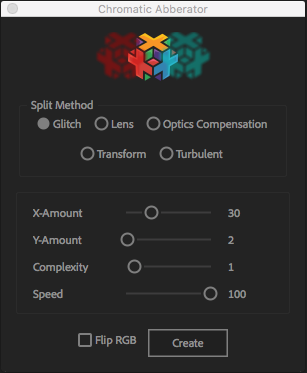
Choose one of the 5 aberration effects. For further customization there are options to adjust the amount of blur, speed, complexity, and even flip the RGB values!

Note: If you want to apply the Chromatic Aberrator to all layers in your composition, just precompose them all together and then apply the script to that precomp. Alternatively, just select all the layers and add the Chromatic Aberrator method you want to use.

The Effects and Controls Null allows you to adjust your Chromatic Aberrator Settings after you have created the effect.

Each effect has different adjustments to further customize your animations. Here, you can also use keyframes if you would like to animate the effect.

This is particularly useful for the glitch and turbulent effects, but can come in handy for any of them. Play with it, and come up with your own custom creations.

After you have your Chromatic Aberration effect looking the way you want, jump back in to your main composition to see how everything looks. You can always go back and make adjustments later.

Check out our 5 Different Techniques you can easily make in the examples below!

See all our Scripts & Plugins Here!

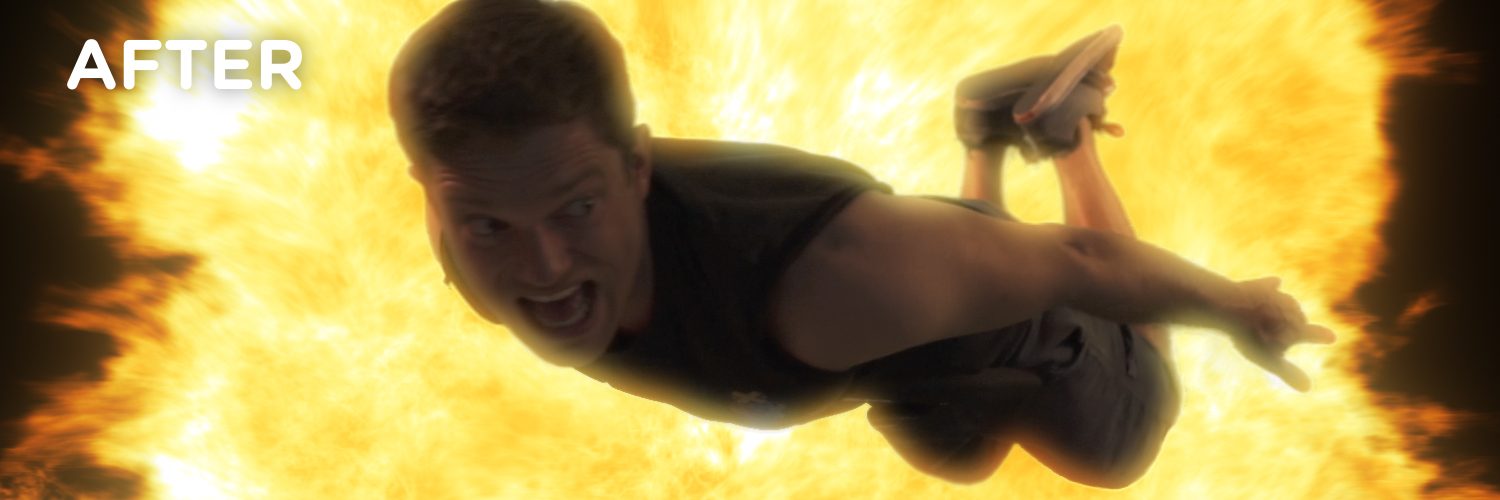
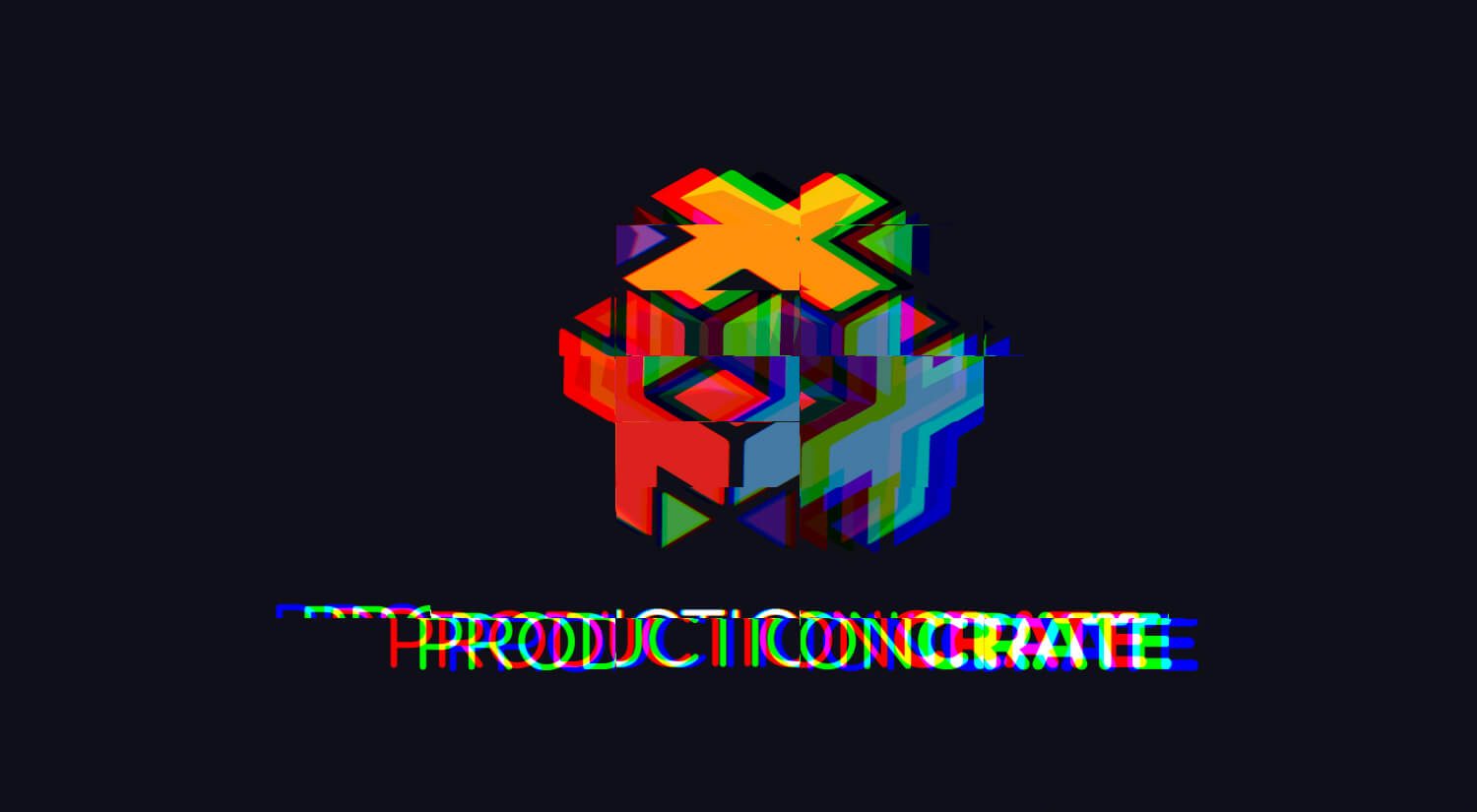
Glitch Effect

Chromatic Aberration Glitch

Lens Effect

Optics Compensation EffectLens Effect

Transform Effect

Transform Effect

Pro Script for Chromatic Aberration